
App Store preview video: specs, length, rules and what to show (2026)
By Protik Bhowmik, Founder, Motionleo ·
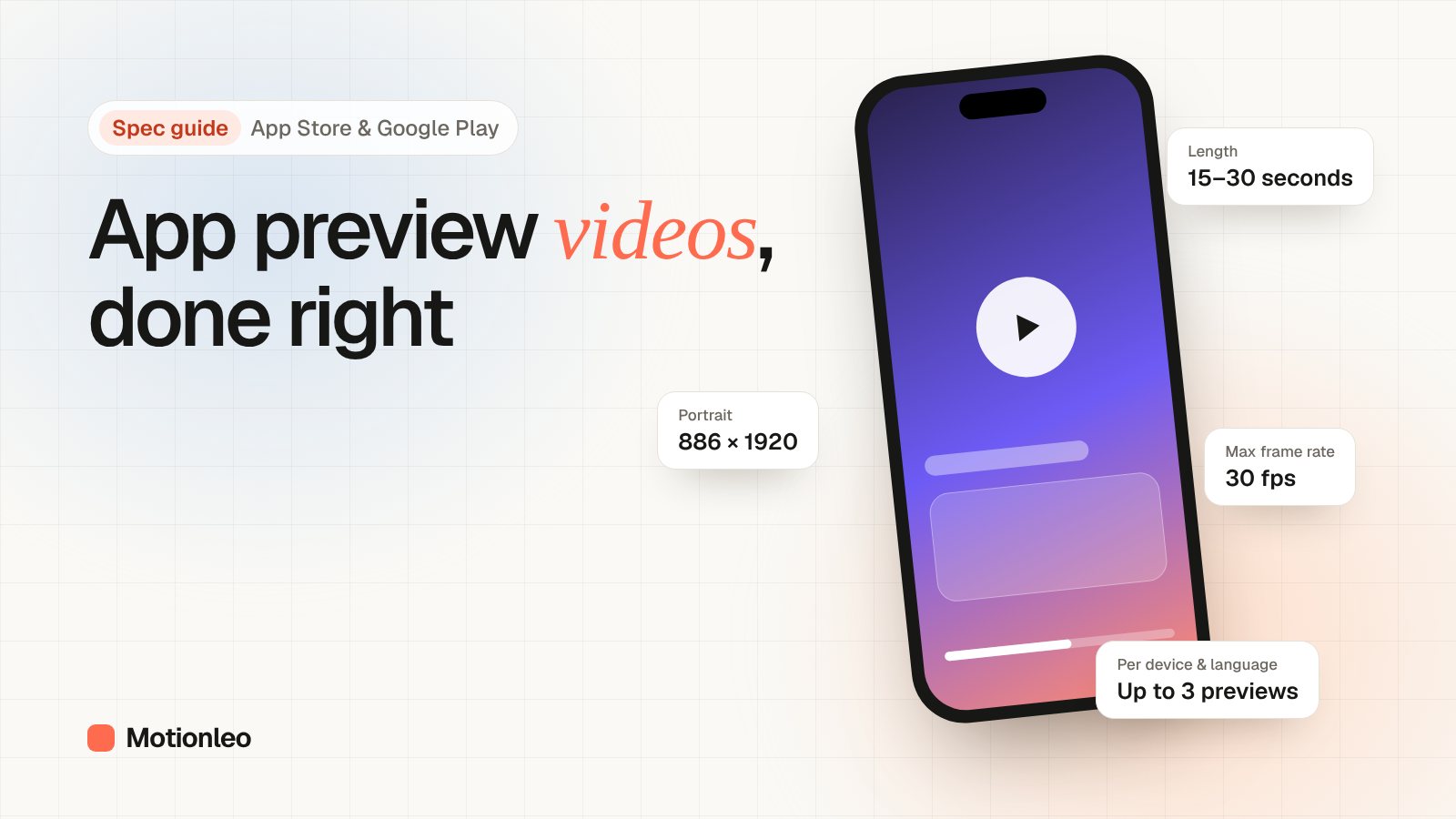
An App Store preview video must be 15 to 30 seconds long, under 500 MB, and at most 30 frames per second, in one of the resolutions Apple accepts for each device size. Google Play works differently: you add one YouTube link. This guide lists the exact specs and content rules from Apple and Google, plus a scene-by-scene structure for a 30-second preview.
What is an App Store preview video?
An app preview is a short video on your App Store product page that demonstrates your app's features, functionality and interface using footage captured on the device. Apple lets you upload up to three per supported device size and language, and they appear before your screenshots on iPhone, iPad, Mac and Apple TV, according to Apple's app preview specifications.
Previews are optional, but because they sit in front of your screenshots and autoplay, a preview is often the first thing a visitor sees.
Where do app previews appear, and do they autoplay?
App previews autoplay on your product page and in App Store search results, and they can also be used in Apple Ads, according to Apple's app preview guidance. They play with the sound muted by default.
If someone has turned off video autoplay in their App Store settings, they see your poster frame instead. If a preview uses a different aspect ratio from your screenshots, it appears in the "A Closer Look" section of the product page rather than in front of the screenshots.
How long should an App Store preview video be?
Apple requires a minimum of 15 seconds and a maximum of 30 seconds. On Google Play, the preview video can autoplay muted for up to 30 seconds, so the first 30 seconds matter most on both stores.
Aim for the full 30 seconds only if every second shows something useful. A tight 20-second preview beats a padded 30-second one.
What size and format does Apple require?
Apple accepts a set of standard resolutions per display size rather than the exact device resolution. For current iPhones with a 19.5:9 screen, the accepted size is 886 × 1920 pixels in portrait or 1920 × 886 in landscape.
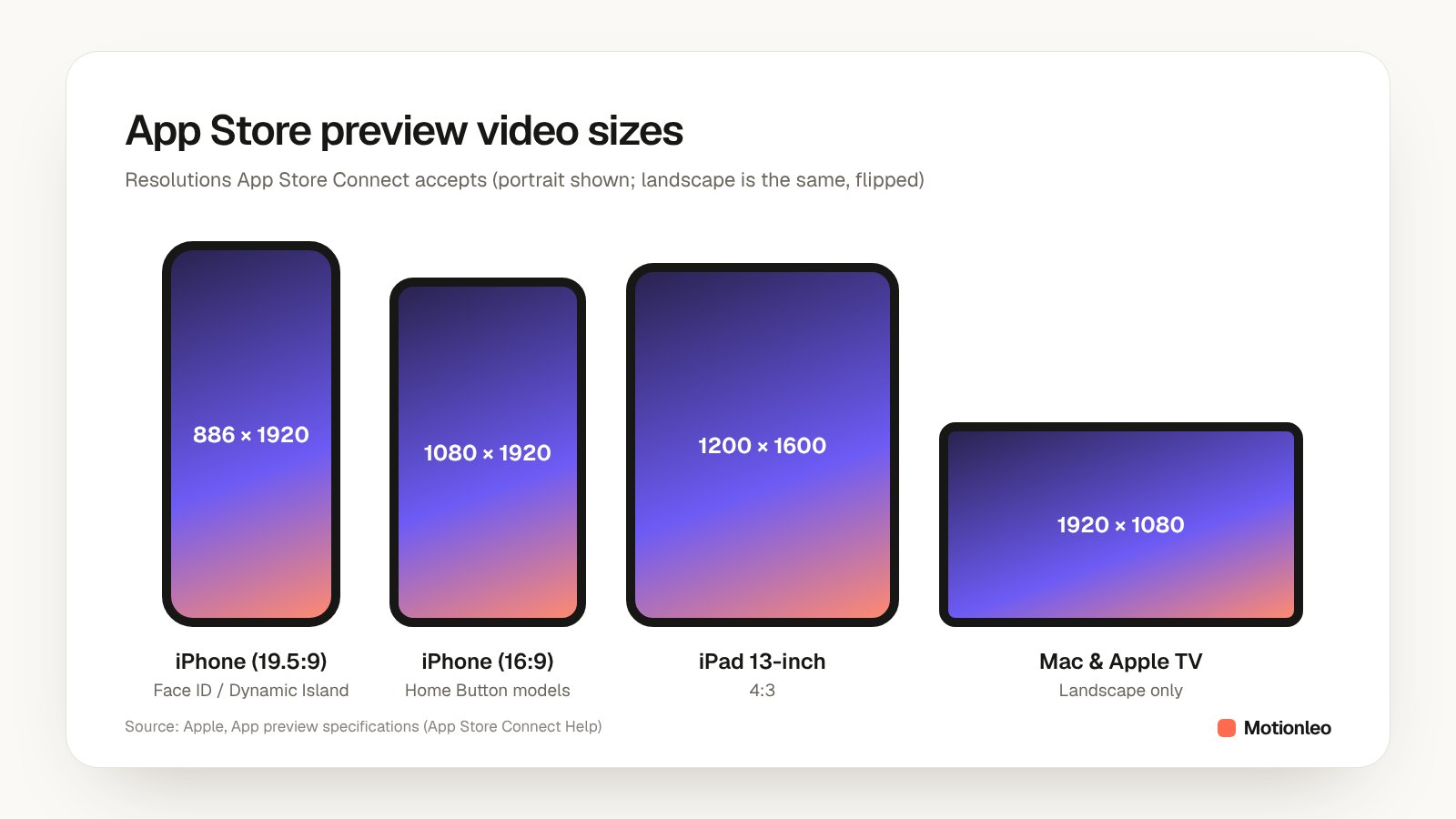
- iPhone with Home Button (16:9): 1080 × 1920 portrait or 1920 × 1080 landscape.
- iPad 13-inch display: 1200 × 1600 portrait or 1600 × 1200 landscape.
- Mac and Apple TV: 1920 × 1080, landscape only.
- Format: H.264 as .mov, .m4v or .mp4 at a target 10–12 Mbps, or ProRes 422 (HQ only) as .mov.
- Frame rate: 30 frames per second at most.
- Audio: stereo, 256 kbps AAC at 44.1 or 48 kHz for H.264.
- File size: 500 MB maximum.
If your interface is the same across device sizes, Apple lets you upload only the highest resolution required and scales it down for smaller devices. If a localized preview is missing, the App Store shows the preview in the next best available language.
What are Apple's content rules for app previews?
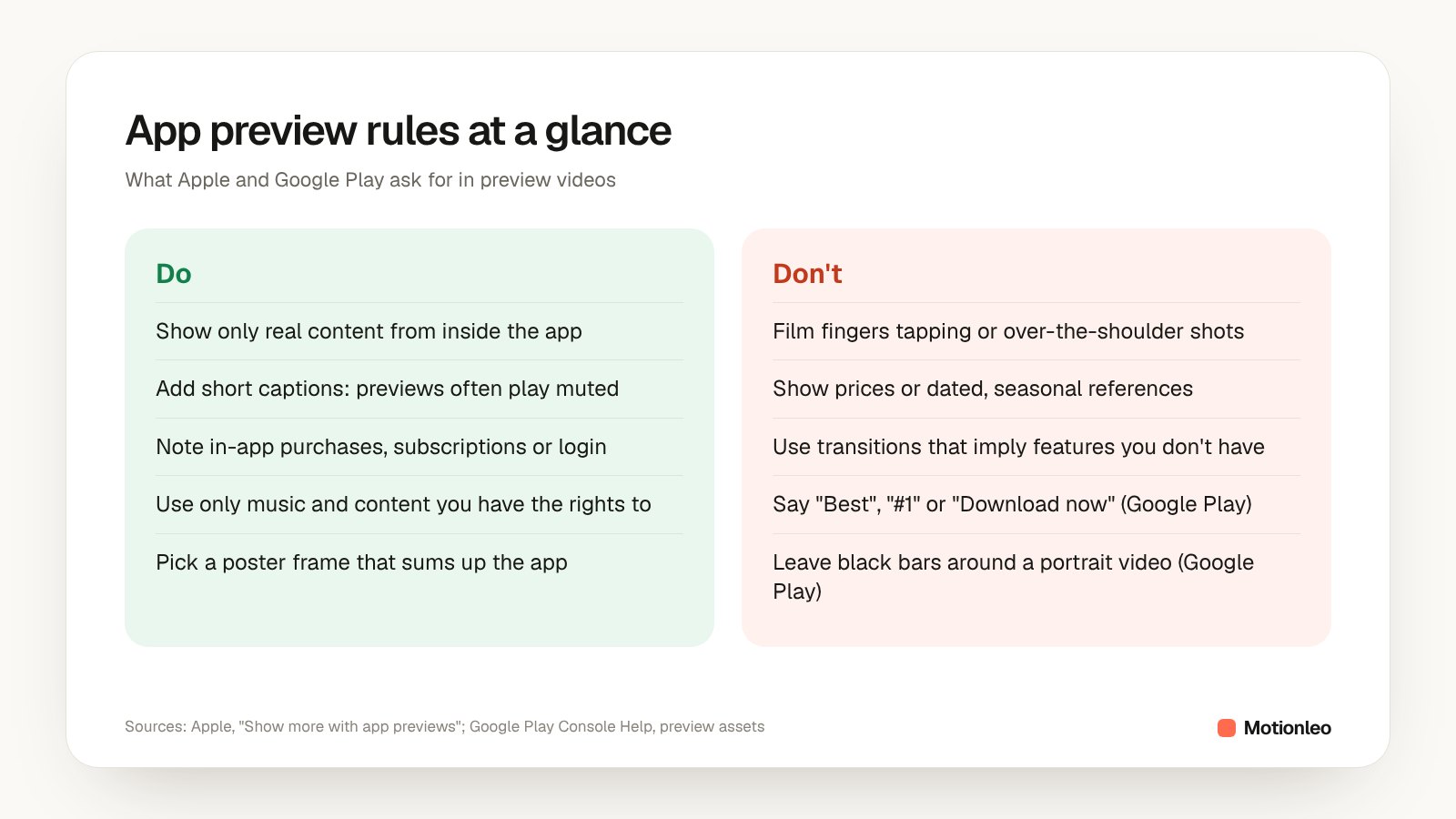
Apple's main rule is to stay inside the app: previews must show only content from within the app itself, captured on device. Apple's guidance also asks you not to film people using a device, such as over-the-shoulder shots or fingers tapping the screen.
- Keep it appropriate for all ages: no violence, adult themes or profanity.
- For games, show more gameplay than cutscenes so you don't give a false impression.
- Use only content you have the rights to, including music, film, characters and brands, in every territory.
- You may add graphics such as touch hotspots to show how navigation works, but transitions must not imply functionality the app doesn't have.
- Capture the native UI resolution rather than zooming into the view.
- Don't show specific prices, because pricing and currencies vary by region, and avoid seasonal or dated references.
- If features need an in-app purchase, a subscription or a login, say so in the footage or the end frame.
How does the Google Play preview video work?
Google Play takes one preview video as a YouTube URL in the "preview video" field. The video must be public or unlisted, have ads turned off, not be age-restricted and be embeddable, according to Google Play's preview asset guidelines.
Your 1024 × 500 feature graphic becomes the video's cover image, and the video appears before your screenshots. It may also show on Play's home and search pages, autoplaying muted for up to 30 seconds depending on the device and connection.
- Use the video's own YouTube URL, not a playlist or channel, and don't add timecodes.
- Turn off monetization. If the video contains copyrighted content with a monetization claim, ads may still run, so use a different video.
- Show the real app within the first 10 seconds and keep at least 80% of the video representative of the user experience.
- Limit title screens, logos and other promotional footage.
- Don't leave black bars on either side of a portrait video.
- Avoid words like "Best", "#1", "New" or "Free", and calls to action such as "Download now".
How do Apple and Google Play compare?
Apple wants video files uploaded per device size, while Google wants a single YouTube link. Here are the key differences side by side.
| App Store (Apple) | Google Play | |
|---|---|---|
| How you add it | Upload a video file in App Store Connect | Paste one YouTube URL |
| How many | Up to 3 per device size and language | 1 (Android XR allows extra) |
| Length | 15–30 seconds | Keep it short: only the first 30s autoplays |
| Orientation | Portrait or landscape on iOS; landscape on Mac, TV | Portrait or landscape |
| Sound | Plays muted by default | Autoplays muted |
| Cover image | Poster frame you choose (default at 5s) | Your 1024 × 500 feature graphic |
| Where it shows | Product page, search results, Apple Ads | Before screenshots; may show on home and search |
How do you plan an app preview that people watch?
Plan one clear story per preview. Apple suggests using the first preview for an overview of the app and any further previews for additional features, with each video showing something new.
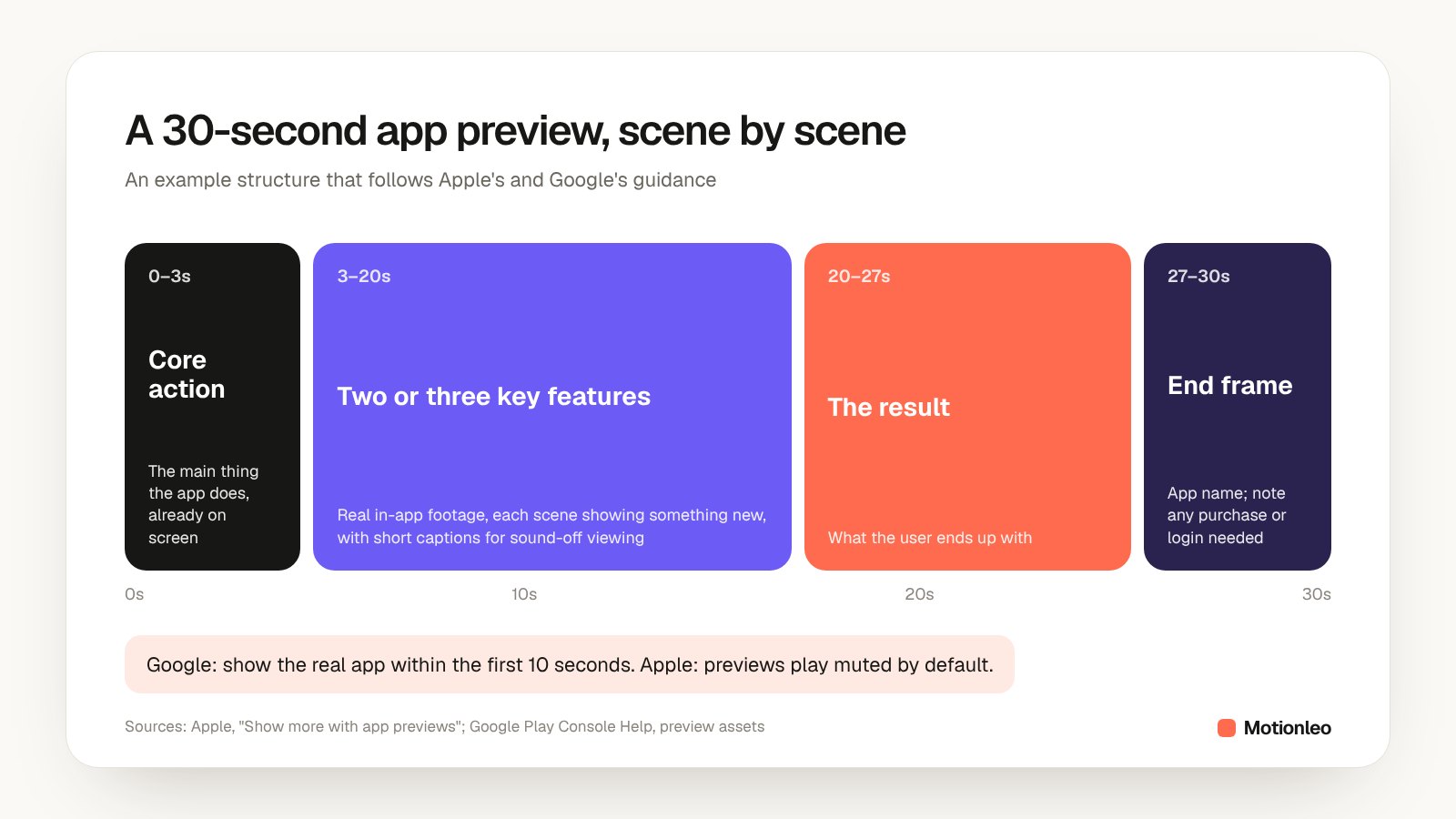
- 0–3 seconds: open on the core action, already on screen, not a logo.
- 3–20 seconds: two or three key features in real footage, each with a short caption.
- 20–27 seconds: the result the user ends up with.
- 27–30 seconds: an end frame with your app name and any purchase or login note.
Because previews play muted, write captions that make sense on their own and keep them on screen long enough to read. Apple suggests a single music track across the whole preview for continuity, plus UI sound effects where they help.
How do you record and edit app preview footage?
Apple's recommended route is to connect your device to a Mac and record the screen with QuickTime Player, then edit in iMovie or Final Cut Pro. Record on a clean device with realistic sample data, and export at 30 frames per second or lower.
- Hide notifications and personal data before recording.
- Record each scene separately so a mistake is easy to replace.
- Use simple transitions such as dissolves and fades, as Apple recommends.
- Export one master per accepted resolution you need.
How do you choose a poster frame?
Pick a frame that sums up the app at a glance, because it is what people see when autoplay is off. The default is the frame at 5 seconds, and Apple notes that changing the poster frame on an approved preview means submitting a new version of the preview.
How do you upload app previews to App Store Connect?
Upload previews in App Store Connect alongside your screenshots, or use the App Store Connect API to upload App Preview Sets for each locale and display size. Apple says processing can take up to 24 hours after upload.
What should you check before uploading?
Check the length, resolution and frame rate against the specs above, then watch it once on a phone with the sound off. Running through a checklist first is quicker than fixing a preview after it has been processed.
- Length is 15–30 seconds (Apple).
- Resolution matches an accepted size for each device you support.
- Frame rate is 30 fps or lower and the file is under 500 MB.
- Only in-app footage: no hands, no over-the-shoulder shots.
- No prices or dated references; purchases, subscriptions or logins are disclosed.
- Poster frame shows something meaningful, not a blank screen.
- The YouTube video for Google Play is public or unlisted, with monetization off.
- Captions are readable without sound.
App Store preview video: frequently asked questions
Are app preview videos required?
No. App previews are optional on the App Store. Google Play doesn't require a preview video either, but recommends one, and games need one to appear in some parts of Google Play.
Can I use the same video on the App Store and Google Play?
You can reuse the same footage, but the delivery is different: Apple needs a video file at an accepted resolution for each device size, while Google Play needs a YouTube link. Check both stores' rules, for example no prices for Apple and no "Download now" for Google.
Do app previews play with sound?
Not by default. Apple plays previews muted, and Google Play autoplays muted, so captions should carry the message.
How many app previews can I upload?
Up to three per supported device size and language on the App Store, and one preview video on Google Play (Android XR listings can add more).
How long does Apple take to process an app preview?
Apple says processing can take up to 24 hours after upload.
Need it made for you? Motionleo produces app promo videos from your real app screens, cut for the App Store, Google Play and short-form feeds. We'll start with a free 15-second sample.
See it on your product first
We'll make a free 15-second sample video for your product. No card needed.
Get a free sample